Nav 1.4.0 is the biggest redesign of the extension so far, redrawing the side panel, the new tab page, the options page, the keyboard hints and the command bar. One accent color now carries the whole look, and you can drag the in-page sidebar down to just its icons. Nothing to set up, your settings carry over, and there are no new permissions. It runs on Chrome or Edge 123 or newer.
Every main screen was redrawn, from the side panel to the command bar.
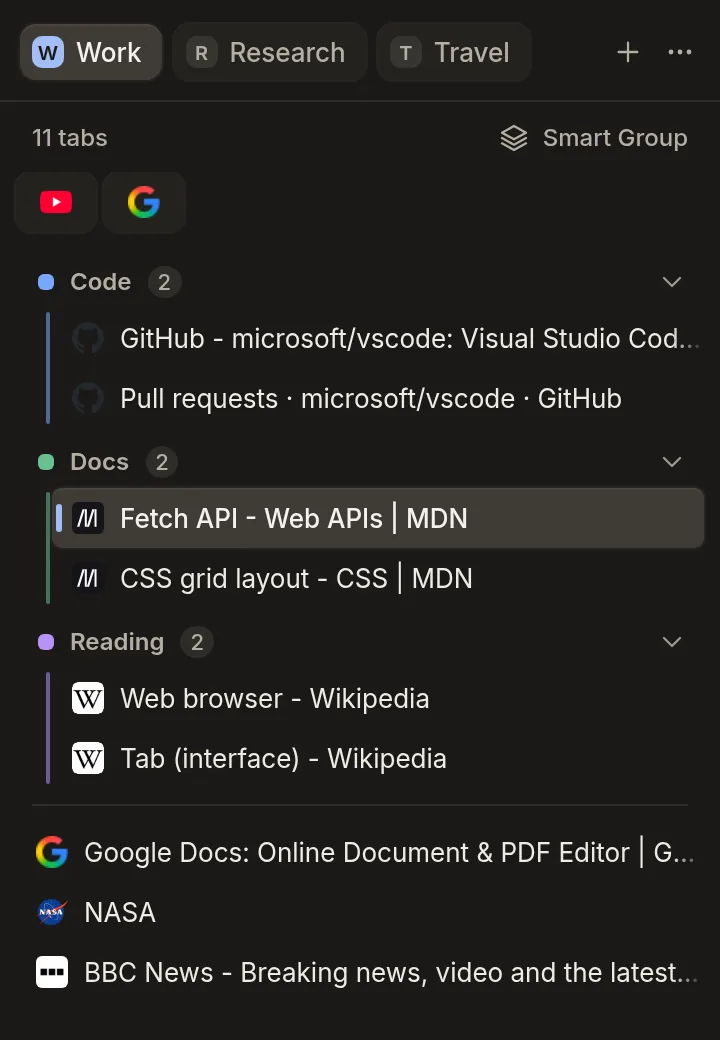
The side panel opens on a row of workspace tiles, plus a More menu.
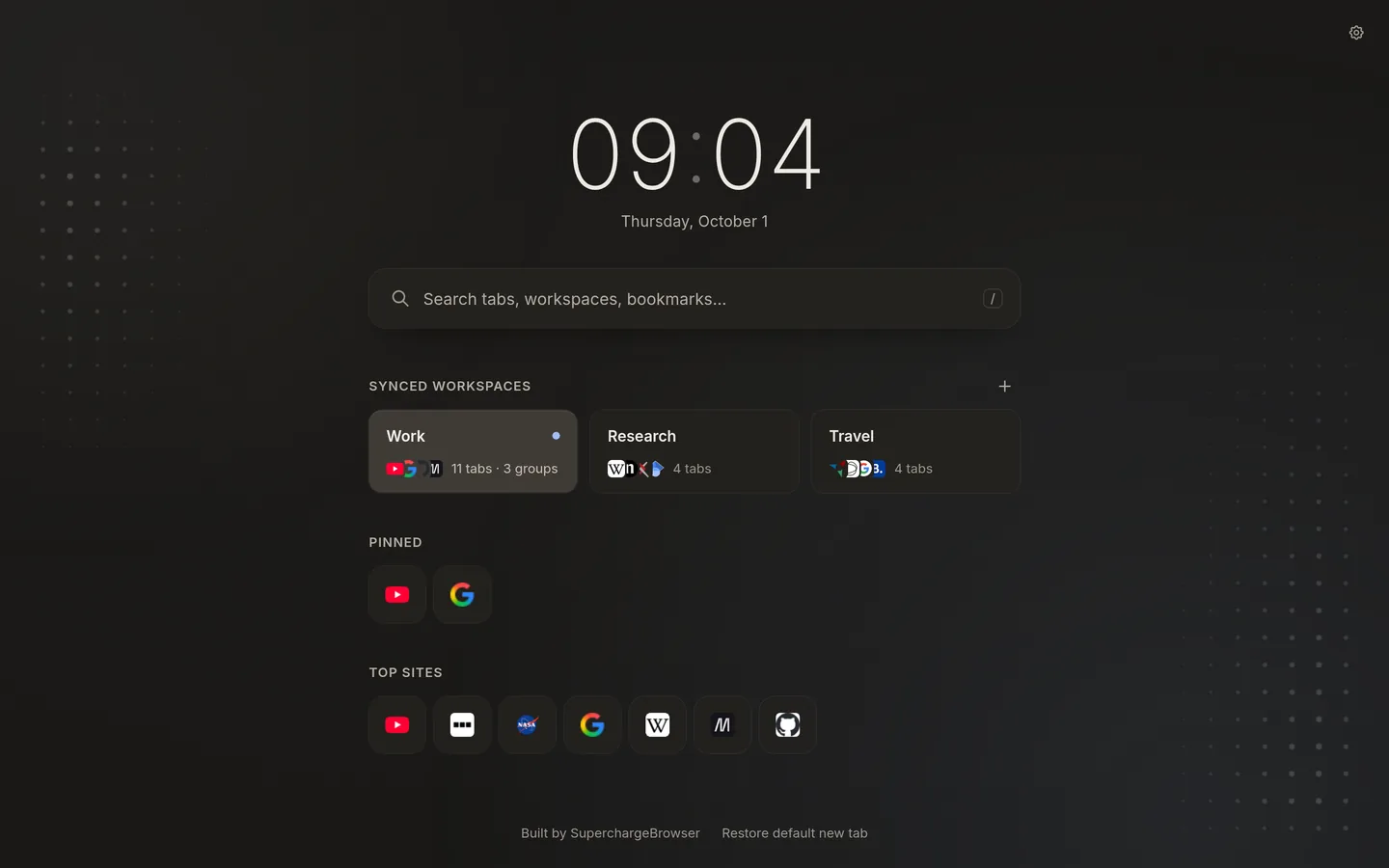
The new tab page is a clean column over a drifting dot field.
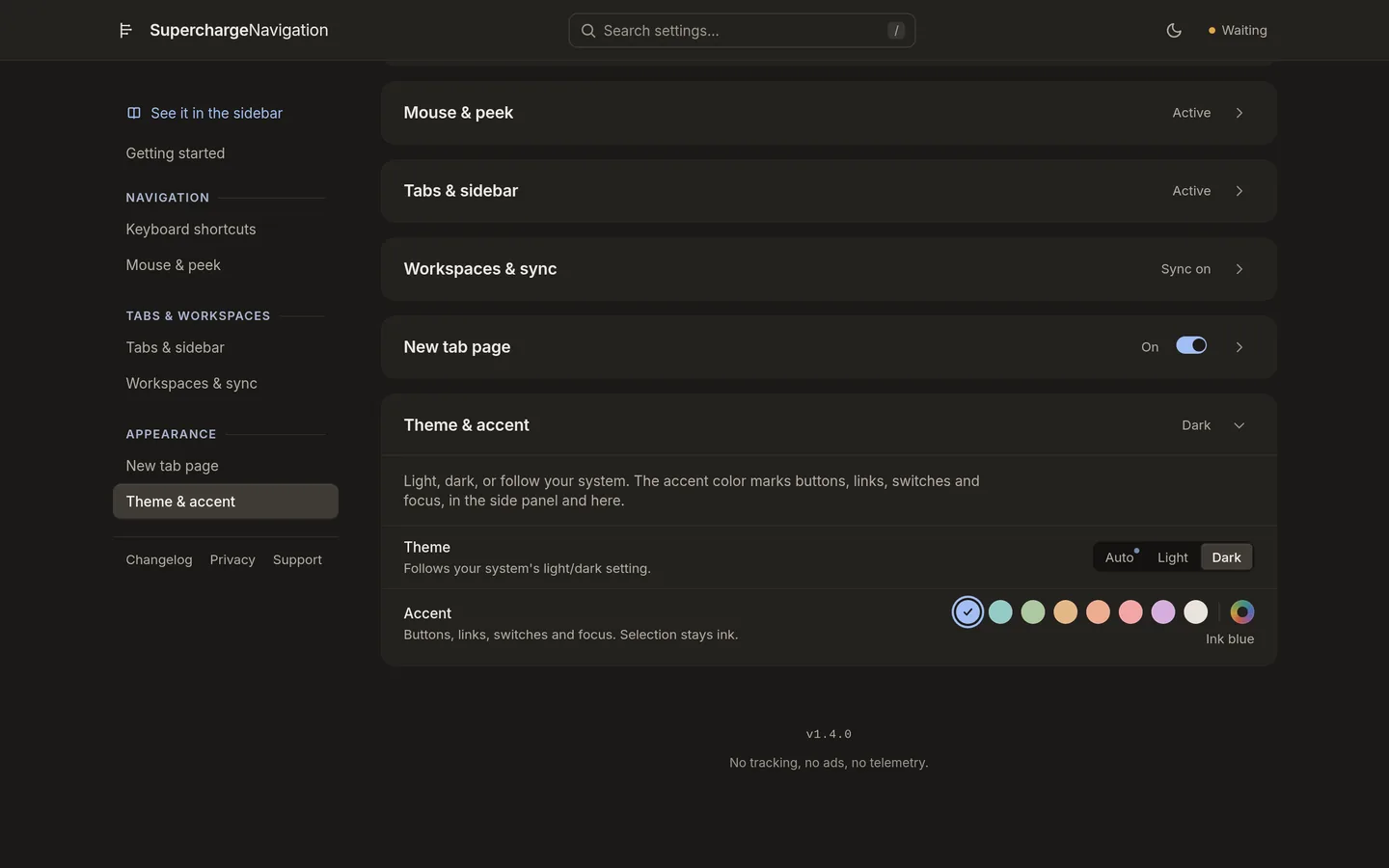
The options page is a thin topbar with a plain left nav.
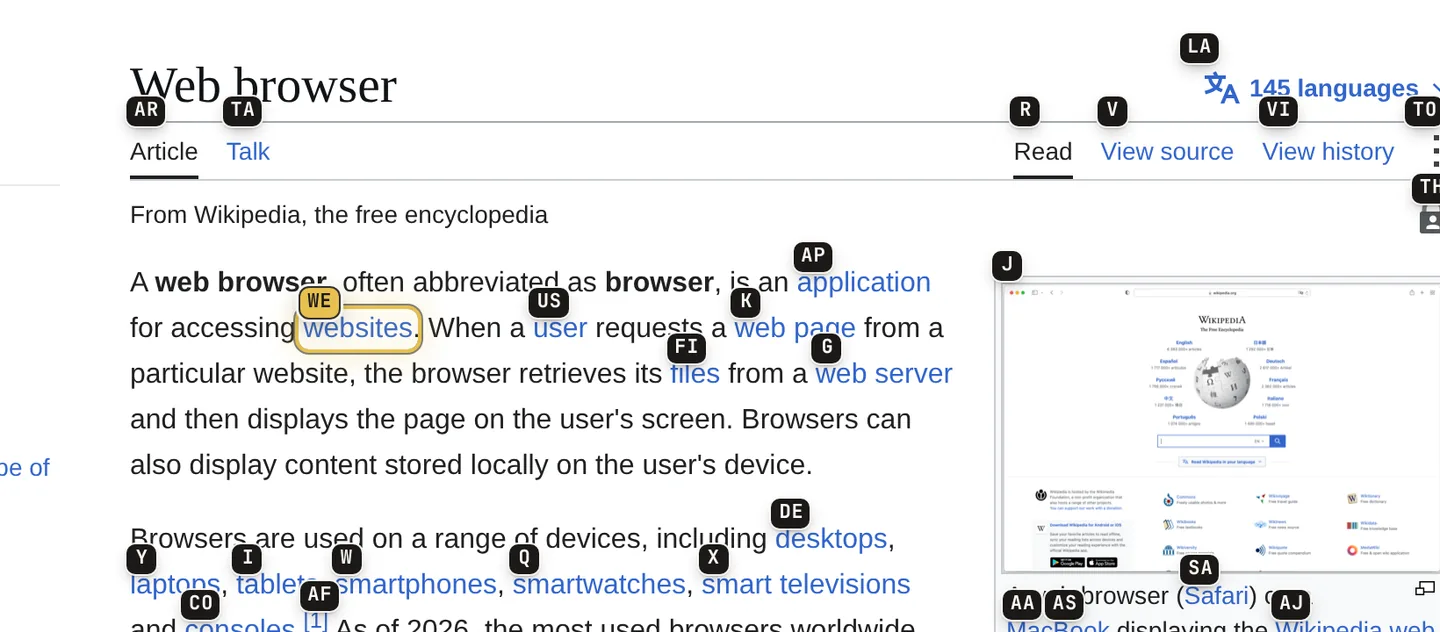
The keyboard hints get an ink-stamp look and a sharper highlight.
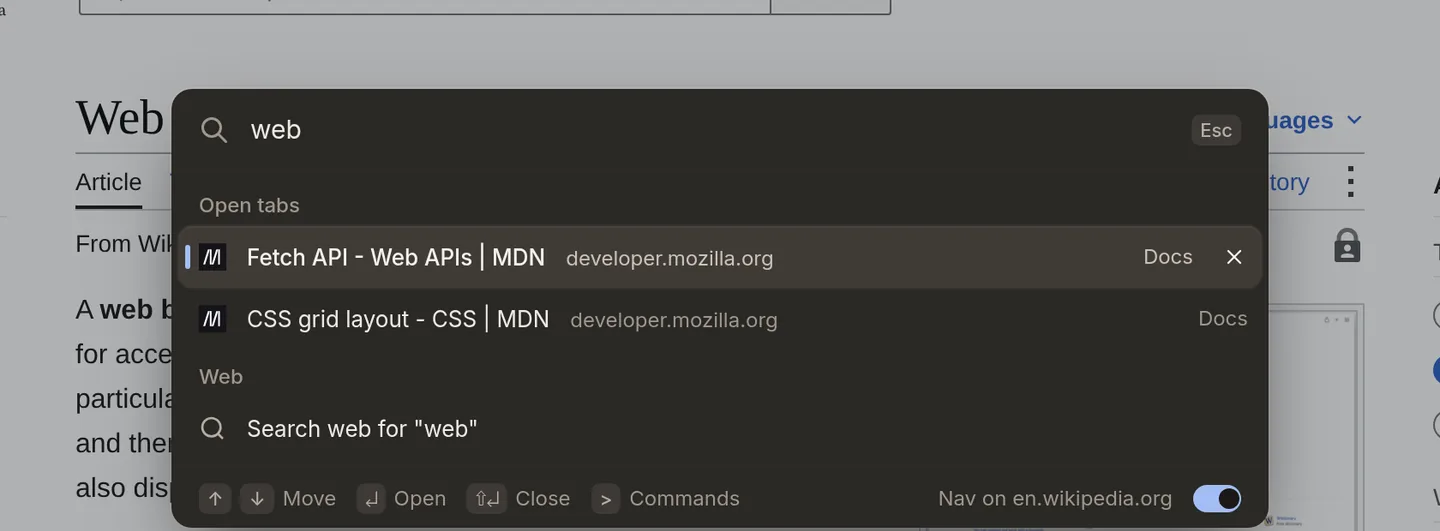
The command bar and the Glance preview are restyled to match.
After updating, open the side panel and look at the new row of workspace tiles. Then turn on the new tab page and move your cursor across the dots. When you are ready, press Alt+K to see the restyled command bar.
Your Side Panel, One Row of Tiles
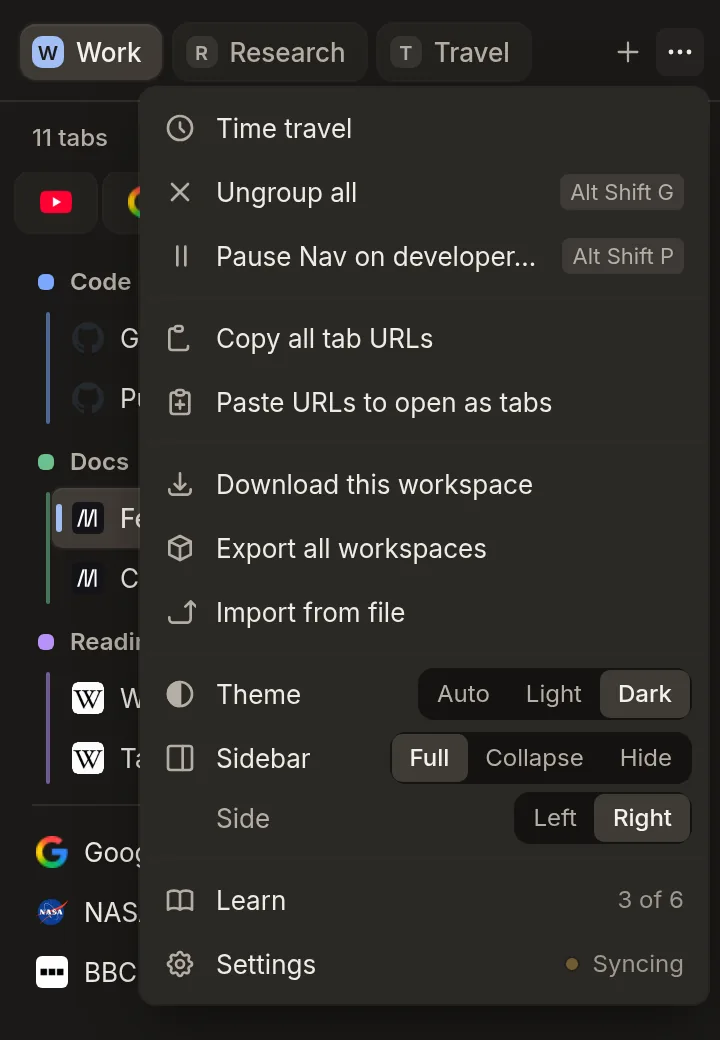
Your side panel opens on a single row of workspace tiles that scroll sideways, with the old button rows gone. The row ends with a + for a new workspace and a ⋯ More menu. The More menu holds Theme, Sidebar and Side, plus your usual actions like time travel, pause and Learn. Inside a page, drag the sidebar’s edge in to collapse it to icons, or out to expand it. Right-click a workspace tile to delete that workspace.
The New Tab Page, One Centered Column
The new tab page is off until you turn it on. It centers a single column: the time, a search row, your workspace cards, then Pinned and Top sites. Behind it, a field of small dots gathers in from a scatter, then holds still. As your cursor moves over the field, nearby dots lift and warm toward the accent color. You can turn the background animation off in settings.
A Tidier Options Page
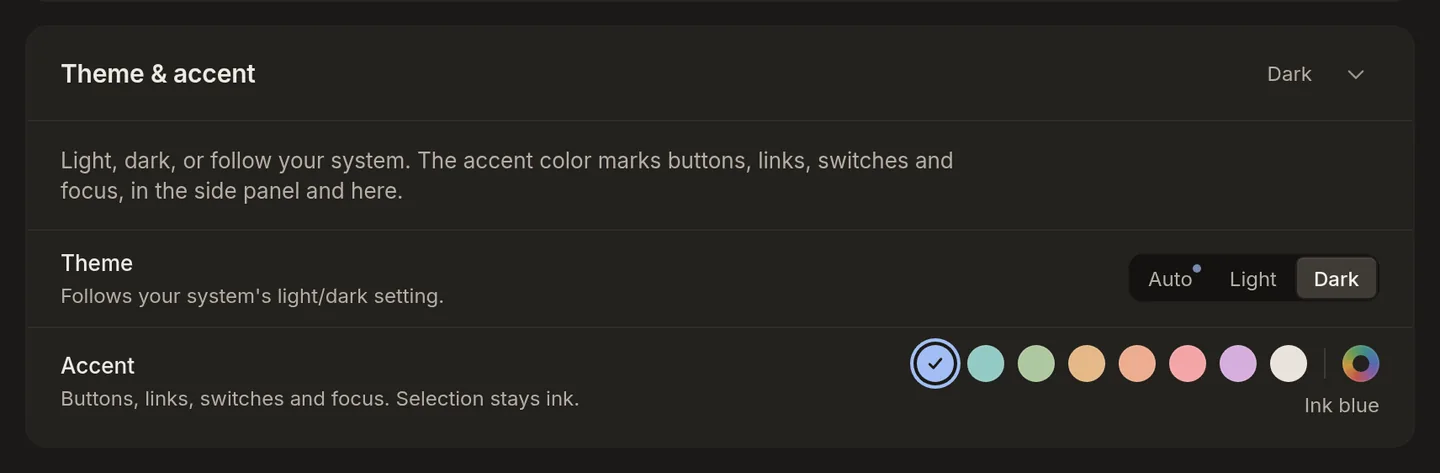
The options page is now a thin topbar with the Nav logo, the search and your sync state. A plain left nav holds the seven setting cards, and it becomes a dropdown when the window is narrow. The switches are easier to read: on is filled with the accent color, off is a hollow outline, so you can tell them apart even with a white accent.
One Accent Color, Everywhere
The accent you pick carries the whole look: it marks the current workspace tile, the links, the buttons and the switches. You choose it from a set of colors on the options page, and set the theme to light, dark or auto in the More menu. If your accent is white or very pale, Nav swaps in a readable shade wherever it carries text, so it stays legible.
Clearer Keyboard Hints
The key hints that hint mode shows on a page get a new ink-stamp look, and the link you are about to pick highlights more clearly as you move through them. The Glance preview and the pause toast are restyled to match.
The Command Bar, Restyled
The Alt+K command bar gets the same restyle as the rest of Nav. Open it with Alt+K on any page and move through the rows to see the new highlight. It tracks Shift while you type, and it keeps its own look, so a page’s styling cannot change it.
Fixes & Other Changes
The menu for sending a tab to a workspace now fits inside the panel instead of spilling past its edge.
Scrolling the mouse wheel over the workspace tiles scrolls the tiles, not the list behind them.
The Alt+K command bar tracks Shift while you type, and a hover that does not move no longer selects a row for you.
The command bar keeps its own look, so a page’s styling no longer changes it.
The in-page rail and the in-page toasts follow Nav’s theme, and the rail no longer shows on pages that aren’t ordinary web pages.
Selected tabs have better contrast and the selection bar dismisses when you click away; a focused panel button keeps responding to Enter, and a closed workspace menu returns focus to the button that opened it.
Time travel now restores into this window’s workspace: your tabs are saved first, and a short Undo puts them back. Before, they went into whichever workspace was active globally. A snapshot also keeps a page that was still loading when it was taken.
When some keyboard shortcuts are not set in your browser, Learn shows a card with a Set shortcuts button that opens the browser’s shortcut page.
1.4.0 needs Chrome or Edge 123 or newer.
No new permissions.
Built solo
Did v1.4.0 land for you?
Your read is the only feedback signal I get.
Built solo
If this felt thoughtful, let me know.
Built by one person. Zero telemetry, no growth team. Your review is the only feedback signal I get, and the only way the next person finds this.