Coming soon · No account · Local

Inspect any element.Copy values for your AI coding tool.

Point at any element to read its font, colors, and spacing. Copy them for your AI coding tool.

No account needed · Zero network calls

Supreme Bold · 700

Ag

  • Ink
  • Amber
  • Paper
Aa Bb Cc 012392 / 1.0 / −0.028em

The button opens the real panel on the card. Point at anything on the page.

  • Status Coming soon
  • Start Alt+Shift+E
  • Browsers Chrome · Edge · Firefox

The panel

Everything in one view

When you lock an element, the panel groups everything into three sections: Typography, Colors, and Box. Each value you see can be copied on its own with a single click.
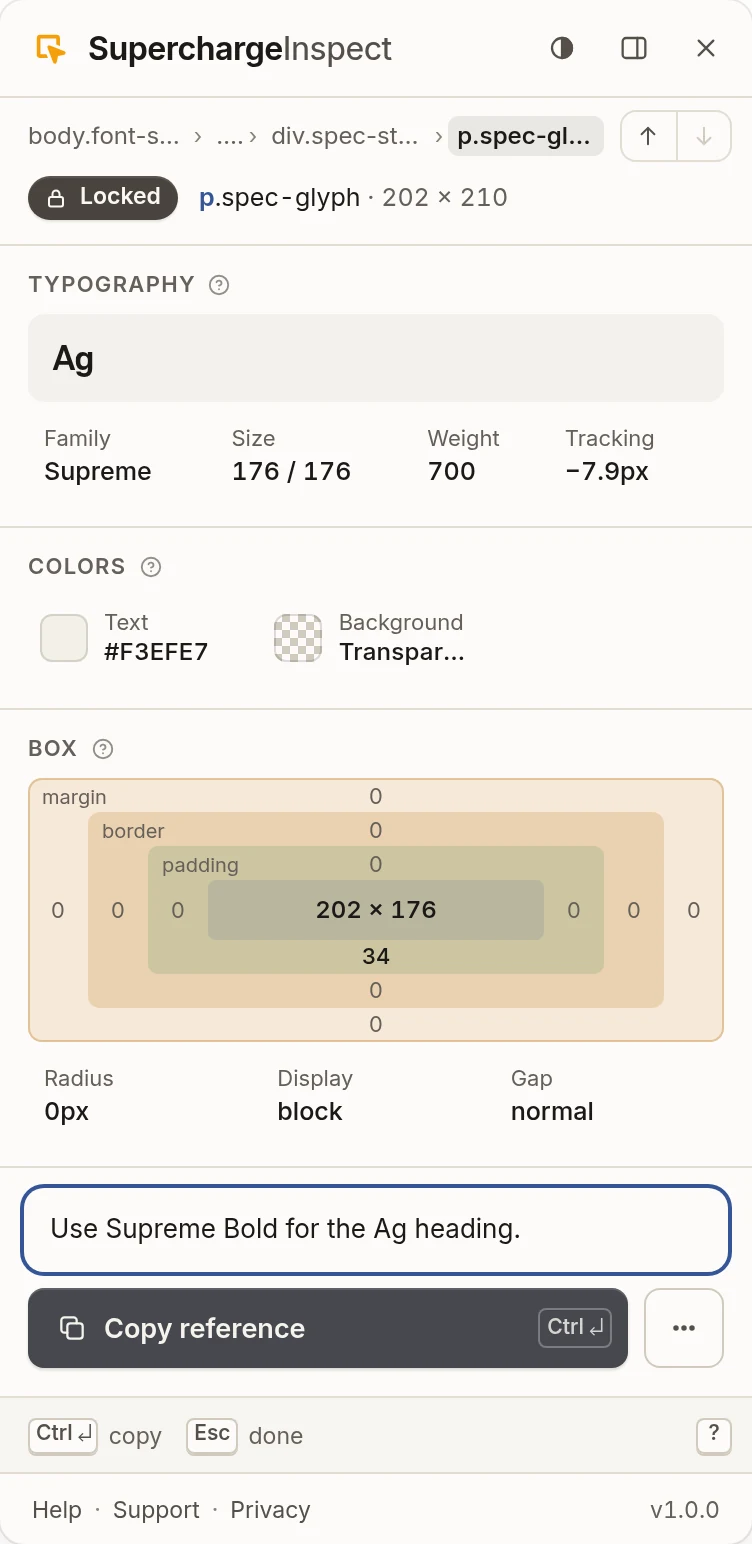
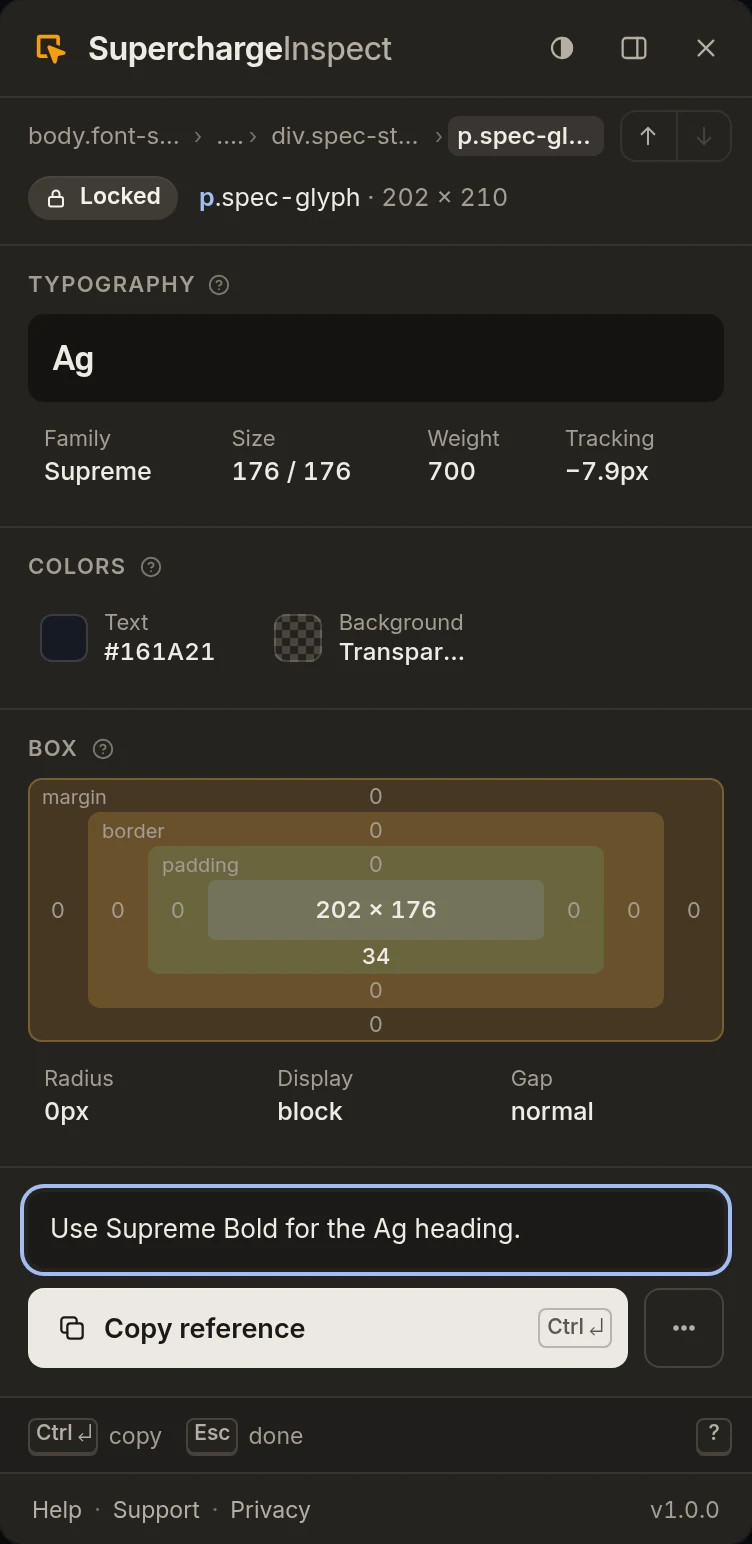
  • Typography See font family, size, weight, and tracking.
  • Colors Read text, background, and border colors in hex.
  • Box Check padding, margin, gap, radius, and display.
or press AltShiftE
The SuperchargeInspect panel locked on the Ag glyph of the specimen card: Typography, Colors, Box, a note field and Copy reference. The SuperchargeInspect panel locked on the Ag glyph of the specimen card: Typography, Colors, Box, a note field and Copy reference.

Copy reference

Hand elements to your AI tool

You write a short note, then copy the reference.
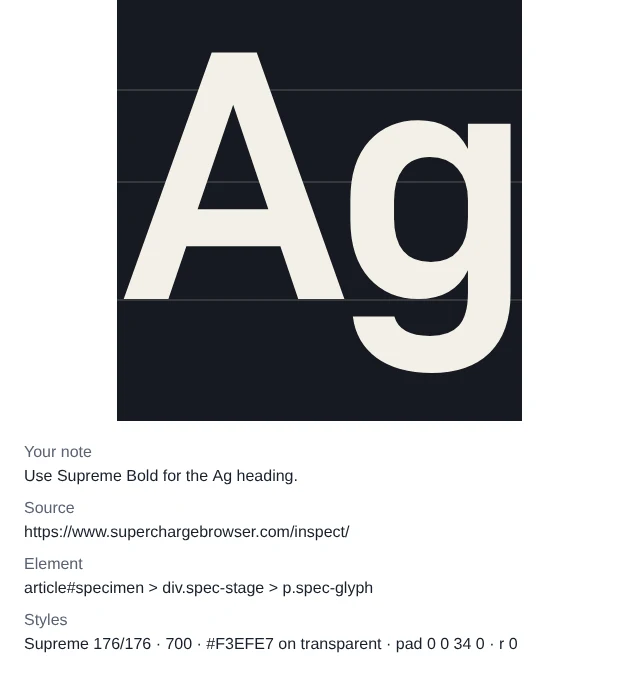
  • Note, page address, element locator, styles, and markup excerpt.
  • Annotated screenshot showing the locked element and its context.
  • Copy text only, image only, or save as PNG.
Reference image from Copy reference: the Ag glyph cropped and outlined, with the note Use Supreme Bold for the Ag heading. the page address and a style line.
The demo simulates a screenshot by redrawing the page. The installed extension captures your real tab and keeps it private.
  • network calls 0 no data sent anywhere
  • account No nothing to sign up
  • panel sections 3 typography, colors, box
  • ways to copy 5 value, reference, text, image, PNG

Run it on the keyboard

  • Alt+Shift+EStarts inspecting on the active page. You can also use the toolbar button.
  • Arrow keysMove to the previous or the next element on the page.
  • Ctrl+Up / Ctrl+DownMove to the parent or the child element. On macOS, use Option+Up and Option+Down.
  • EnterLock the element you are pointing at. Press it again to write a note.
  • Ctrl+EnterCopies the reference. On macOS use Cmd+Enter. Before locking, it locks and copies.
  • EscGo back to picking, or close the panel.

Private and local

Private by design

No network calls, no account.

  • No network calls and no data sent to any server.
  • No account, and nothing is ever uploaded from your device.
  • A screenshot leaves your device only if you save or paste it.
  • Only your last pick per page and theme choice are kept.

Frequently asked questions

What is SuperchargeInspect?
SuperchargeInspect is a CSS inspector and element inspector. You point at any element on a page and it shows the font, the colors, and the spacing in one panel. You can copy a single value, or copy everything with a note and an annotated screenshot for your AI coding tool.
Does it show the font a site actually renders?
It shows the declared font family, not a verified rendered font. The panel shows the first family in the list, and the copy grabs the full declared stack. That is the font the page asks for. It does not check which font is actually drawn on screen, so read it as the declared family.
Which color formats does it show?
Colors are shown in hex. That covers the text color, the background color, and the border when there is one. A color that is partly transparent is shown as an rgba value, and a fully transparent one shows as transparent. You click any color to copy that exact value.
What gets copied for an AI coding tool?
You write a short note, then copy the reference. The copied text holds your note, the page address, the element and its locator, the viewport size and scroll position, the element position and size, the observed styles, and a short markup excerpt. The annotated screenshot shows the element with your note, the address, and a short style line.
Does it send my data anywhere?
No. Everything you inspect stays on your device. The extension makes no network calls and sends no data. There is no account. A screenshot leaves your device only when you save it or paste it somewhere, and what another app does with that paste is up to that app.
When and where will it be available?
It is coming soon, and there is no date yet. Leave your email on this page and we will tell you when it is live. It will run in Chrome, Edge, and Firefox, on Windows, macOS, and Linux.

Be first when it is live.Leave your email below.

SuperchargeInspect is built by SuperchargeBrowser and is coming soon. Leave your email and we will tell you when it goes live, with a link to get it.

Don't miss the next release

Be first to know when we ship something new.

Proof for the ticket

Show the bug instead of describing it.

You spotted a broken layout while inspecting. Record the tab or take a full-page screenshot and share it straight to Drive. No watermark, no account.

Add to Chrome

Free · 100% local · No account