This is the biggest redesign of SuperchargeAudio so far: the popup is new, and so are the loudness slider, the EQ, the meters on every playing tab, Silence and Smart Mute, and the Saved sites menu. The full-width loudness slider has an amber boost zone past 100 % and a dB readout, and the EQ is a curve you drag over a live spectrum of what is playing. There is nothing to set up, your settings carry over, and there are no new permissions, though it now needs Chrome 123 or newer.
The whole popup is redesigned, from the loudness slider to the Saved sites menu.
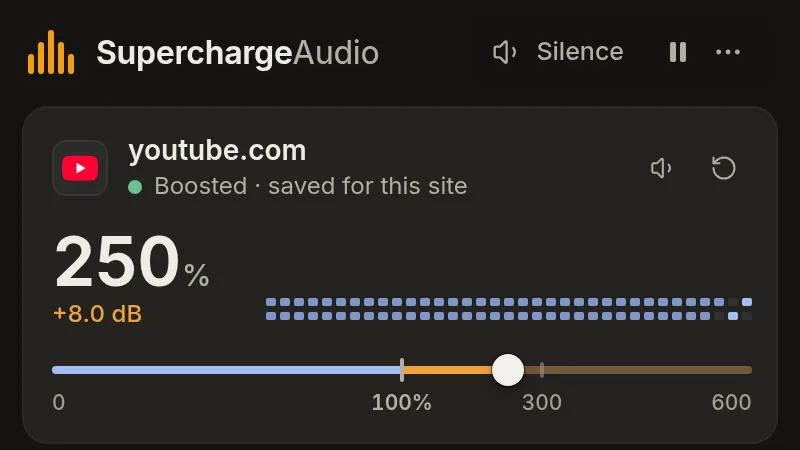
Drag the slider past 100 % into boost; a dB readout shows the level.
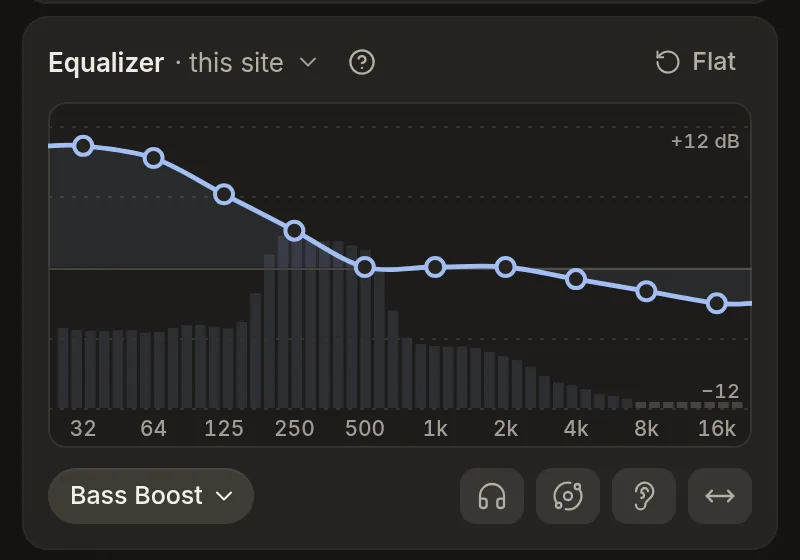
Drag an EQ point to see its Hz and dB, or pick a preset.
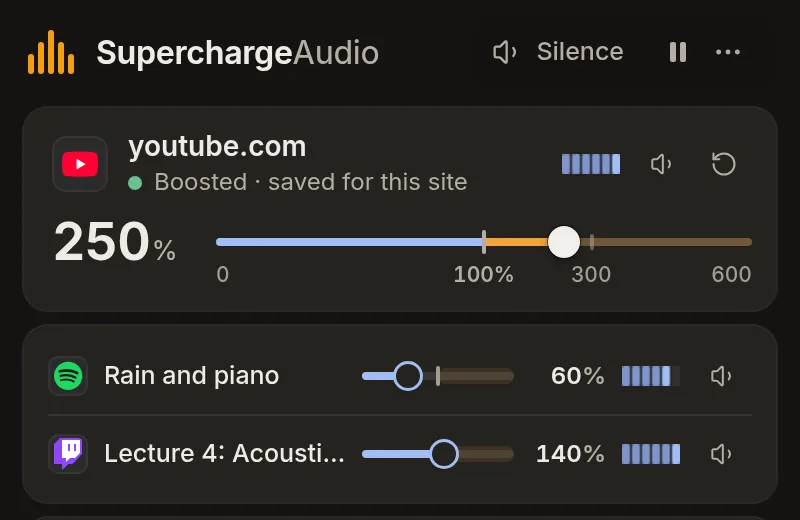
Live meters on every playing tab, each with a 'Go to tab' button.
Silence in the header mutes every tab until you turn it off.
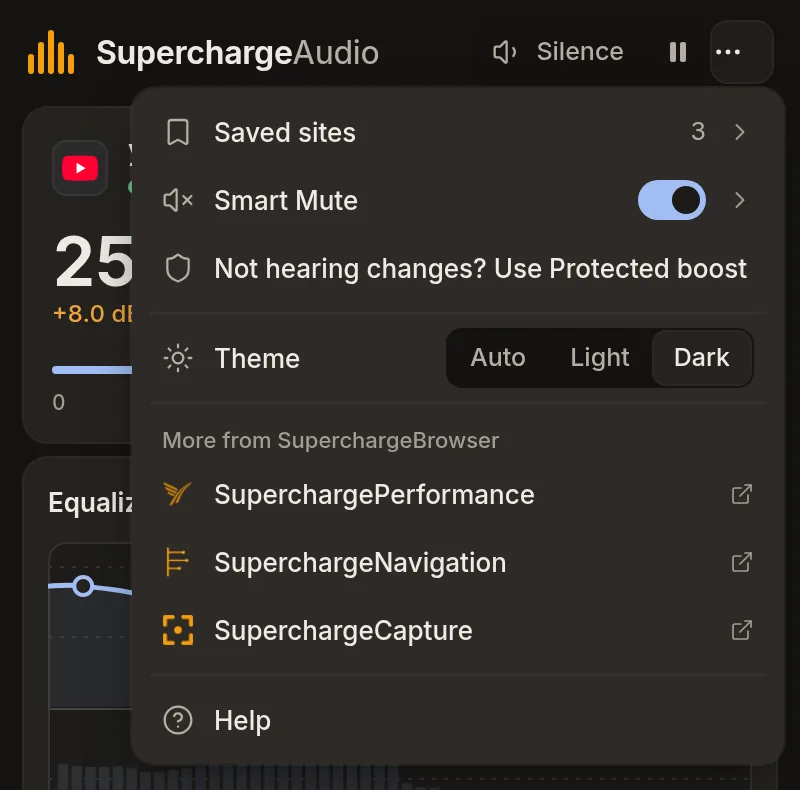
Saved sites now lists each site with its real site icon.
After updating, open the popup on a tab that is playing sound. Drag the loudness slider past 100 %, then drag a point on the EQ curve.
The Popup and a Full-Width Loudness Slider
The loudness slider now spans the full width of the popup, and the amber zone past 100 % marks where the boost begins. As you drag, a readout shows the level, like “Normal · 0.0 dB” or “+8.0 dB”. A status line under the site says what is saved there, like “Boosted · saved for this site” or “Not boosted yet”. The popup fits without scrolling.
The EQ Over a Live Spectrum
The EQ is a curve you drag over a live spectrum of what is playing, and each point’s label shows its band in Hz and its gain in dB. Start from a preset, or save the curve you made. You can apply it to this site only, or make it the default for every site that has no per-site EQ. Effects like 8D Audio, Fix one ear, and Headphones shape the sound further.
Every Playing Tab Gets a Meter
Every tab that is playing gets its own live meter, its own volume and mute controls, and a “Go to tab” action that jumps you there. A row counts how many more tabs are playing, and it opens the All playing sheet, where you can Mute all at once. A tag under a muted tab explains why it is muted: “Muted”, “Silenced”, or “Smart Mute”.
Silence, Smart Mute, and Pause in the Header
In the header, the Silence switch mutes every tab until you turn it off, and it keeps your volume at the level you set. Smart Mute mutes a tab that starts playing while you are on another tab, and you see “Muted by Smart Mute” with an “Always allow this site” button. Pause lets every tab play at its normal volume, and your volume comes back when you press Resume.
The ⋯ Menu and Saved Sites
Open the ⋯ menu in the header and you get Saved sites, which lists every site where you have saved audio settings, now with each site’s real icon. The same menu opens Smart Mute, where you can add a site to “Always allow” or “Always mute”, with an “Add this site” button. At the bottom, “More from SuperchargeBrowser” shows the other SuperchargeBrowser extensions, each with its real logo.
Fixes & Other Changes
Protected boost is the new name for what used to be called capture mode. It records the tab’s sound on your computer and plays it back louder. Chrome shows “sharing this tab” while it runs, and nothing leaves your computer.
Tabs using Protected boost now show a live level meter.
Pressing Pause right after changing the volume no longer boosts the tab again.
Sheets slide in smoothly, and the popup keeps its size when you turn on Silence or move the slider.
EQ effect chips no longer overlap.
SuperchargeAudio now needs Chrome 123 or newer; older Chrome keeps version 1.0.8.
Your saved sites, EQ presets, and Smart Mute lists carry over.
No new permissions.
Built solo
Did v1.1.0 land for you?
Your read is the only feedback signal I get.
Built solo
If this felt thoughtful, let me know.
Built by one person. Zero telemetry, no growth team. Your review is the only feedback signal I get, and the only way the next person finds this.