# SuperchargeCapture 1.2.0 — Every Screen of Capture, Redesigned
> Capture 1.2.0 is the biggest redesign of the extension so far, redrawing the popup, the recording controls, the image and video editor, and the new Captures page. In the image editor you type into a live text box that looks like the final result, and the video editor shows an export's size at once. Nothing to set up, your settings carry over, and there are no new permissions.
- Canonical: https://www.superchargebrowser.com/changelog/capture/1.2.0/
- Extension: capture
- Version: 1.2.0
- Released: 2026-10-02
- Source: SuperchargeBrowser (https://www.superchargebrowser.com)
## Highlights
- Every screen was redrawn, from the popup to the new Captures page.
- The popup opens on source tiles, with your last 5 captures below.
- Start shows a countdown with a Cancel, in the popup and on the page.
- A tool rail brings Steps, Redact, and Spotlight to images.
- The video dock adds Split and Cut silences under the player.
- A new Captures page holds every capture in one grid, with filters and search.
After updating, click the Capture icon, pick a source, and press Start. The countdown lets you cancel, and "Stop and edit" opens the result in the editor. A recording lands you in the video editor; open a screenshot, then the Text tool.
## The Popup Opens on Source Tiles
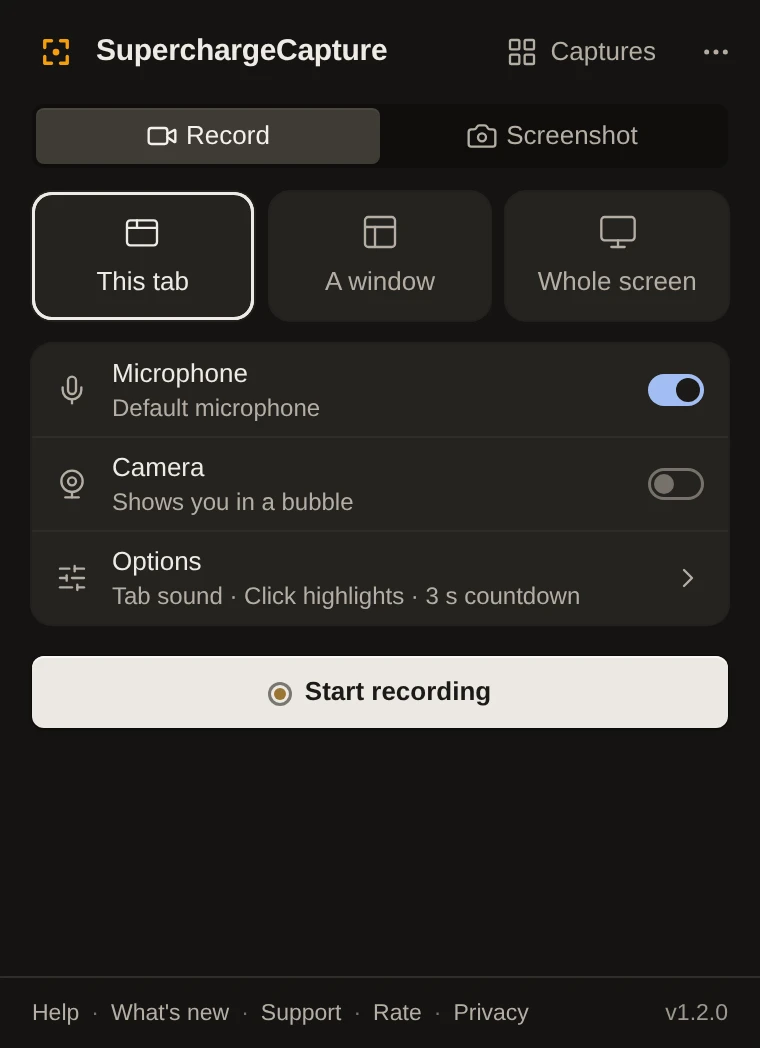 The popup opens on source tiles: This tab, A window, and Whole screen, plus a screenshot panel. The Options row slides out a sheet with microphone and camera pickers and camera choices like Show me live and Blur background. A Recent strip shows your last 5 captures, newest first, and clicking a thumbnail opens that capture in the editor.
## Recording Starts With a Countdown You Can Cancel
The popup opens on source tiles: This tab, A window, and Whole screen, plus a screenshot panel. The Options row slides out a sheet with microphone and camera pickers and camera choices like Show me live and Blur background. A Recent strip shows your last 5 captures, newest first, and clicking a thumbnail opens that capture in the editor.
## Recording Starts With a Countdown You Can Cancel
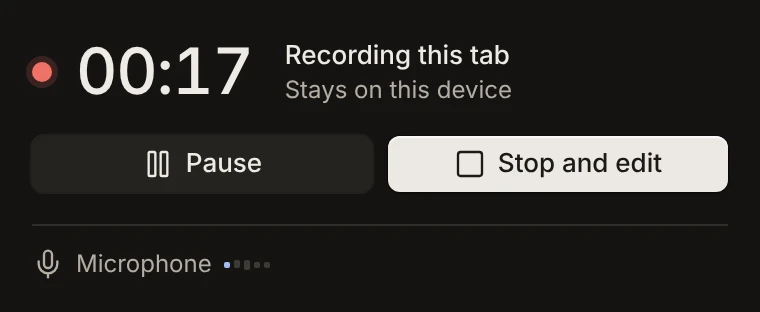 Pressing Start shows a "Starting in" countdown with a Cancel button, in the popup and as a glass countdown on the page. While recording, the popup is a small strip: the timer, Pause and Resume, "Stop and edit", and a live microphone level meter. Area selection on the page gets a ring and a hint, and a floating self-view window can show your camera. The permission page got the new look, a live meter, and a "Try again" button.
## The Image Editor With a Live Text Box
Pressing Start shows a "Starting in" countdown with a Cancel button, in the popup and as a glass countdown on the page. While recording, the popup is a small strip: the timer, Pause and Resume, "Stop and edit", and a live microphone level meter. Area selection on the page gets a ring and a hint, and a floating self-view window can show your camera. The permission page got the new look, a live meter, and a "Try again" button.
## The Image Editor With a Live Text Box
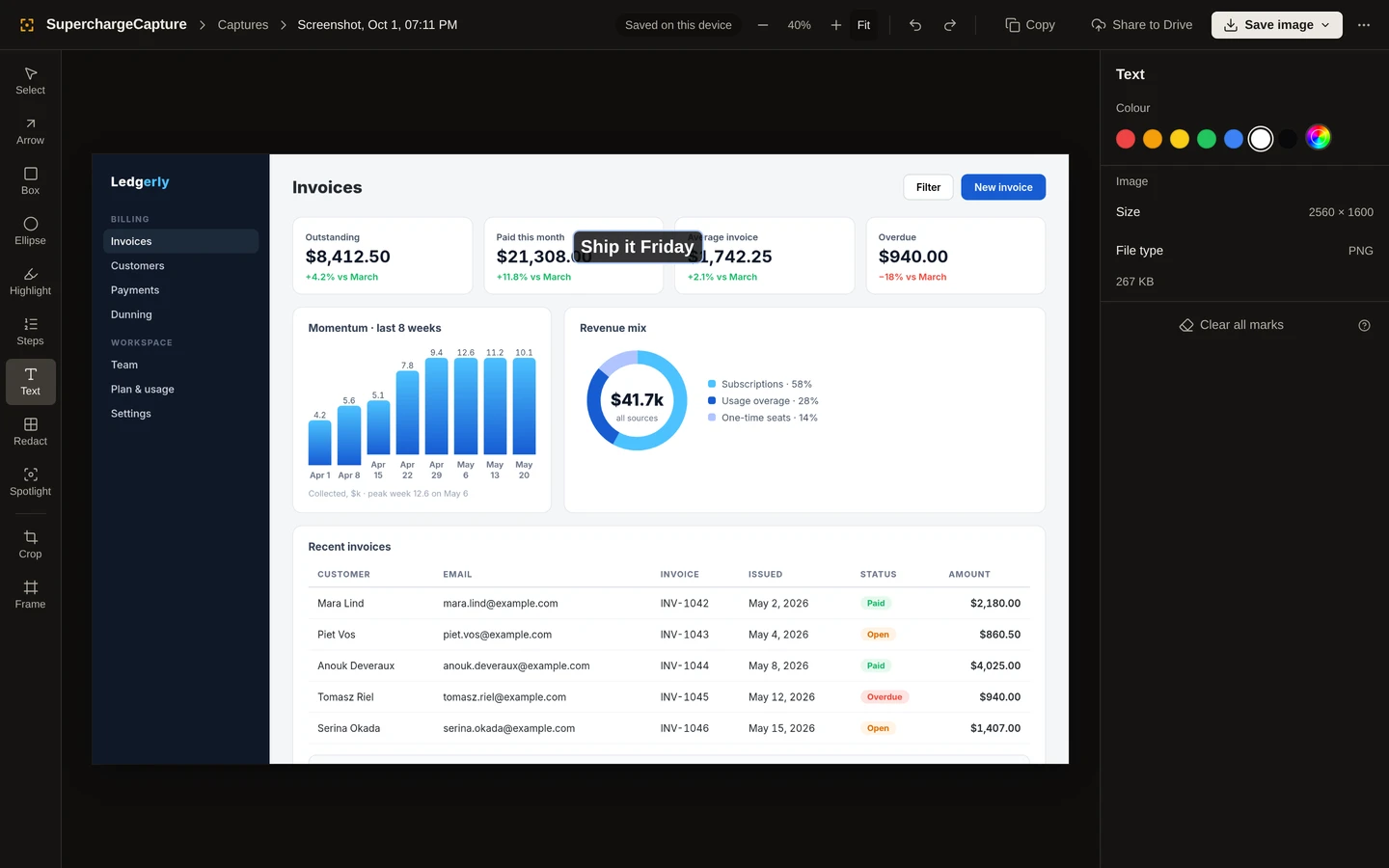 A tool rail on the side holds Select, Arrow, Box, Ellipse, Highlight, Steps, Text, Redact, and Spotlight, plus Crop and Frame. Hovering a tool shows its name and its key, and the settings panel follows the tool you pick. In the Text tool you type into a live box that already looks like the final text. The new top bar shows a breadcrumb with the capture's title, a "Saved on this device" chip, and a Save menu with PDF. The top bar also has zoom controls with minus, a percentage, plus, and Fit, and the "..." menu now includes "Keyboard shortcuts" which lists every shortcut.
## The Video Editor With an Export Estimate
A tool rail on the side holds Select, Arrow, Box, Ellipse, Highlight, Steps, Text, Redact, and Spotlight, plus Crop and Frame. Hovering a tool shows its name and its key, and the settings panel follows the tool you pick. In the Text tool you type into a live box that already looks like the final text. The new top bar shows a breadcrumb with the capture's title, a "Saved on this device" chip, and a Save menu with PDF. The top bar also has zoom controls with minus, a percentage, plus, and Fit, and the "..." menu now includes "Keyboard shortcuts" which lists every shortcut.
## The Video Editor With an Export Estimate
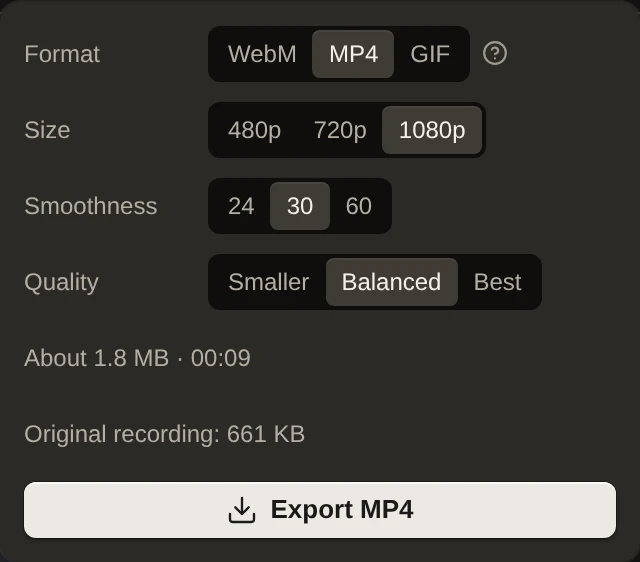 Under the player, a dock holds Split and Cut silences. Look and Captions sit in two tabs, with new backgrounds in light, mid, brand, and dark, plus gradients, and new recordings start on the neutral Graphite background. The Export menu opens with the size estimate already visible, such as "About 1.8 MB · 00:09", and lists format, size, smoothness, quality, and the original recording's size.
## The New Captures Page, One Grid
Under the player, a dock holds Split and Cut silences. Look and Captions sit in two tabs, with new backgrounds in light, mid, brand, and dark, plus gradients, and new recordings start on the neutral Graphite background. The Export menu opens with the size estimate already visible, such as "About 1.8 MB · 00:09", and lists format, size, smoothness, quality, and the original recording's size.
## The New Captures Page, One Grid
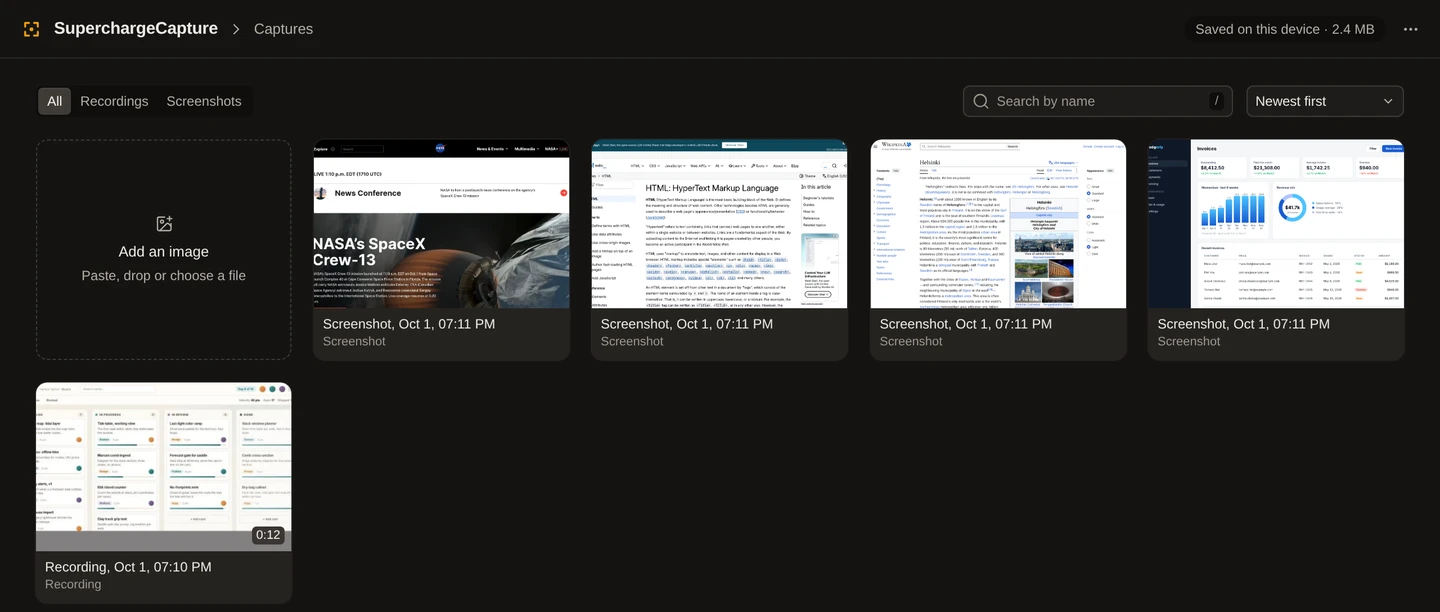 Every screenshot and recording sits in one grid, opened from the Captures breadcrumb in the editor. Filter by Recordings or Screenshots, search, and sort by Newest, Oldest, Largest, or Longest, with a "Saved on this device" total in MB. Select several to open, save, or delete them together, and delete asks to confirm inline.
## Fixes & Other Changes
- Dropdown options are readable in dark mode.
- The popup scrolls when its content is taller than the window.
- The editor toolbar wraps on narrow windows instead of cutting off.
- Reconnecting Google Drive never uploads a capture a second time, and a failed save no longer shows a "saved" message.
- "Trim silence" is now "Cut silences", and "Blurring and redaction" is now "Blur and redaction".
- Press Esc in the More menu to close it during a recording without canceling.
- A recording under 50 KB that was started and aborted no longer shows a recovery card in the popup.
- Small controls like trim handles are larger and easier to hit.
- No new permissions.
---
Canonical URL: https://www.superchargebrowser.com/changelog/capture/1.2.0/
Every screenshot and recording sits in one grid, opened from the Captures breadcrumb in the editor. Filter by Recordings or Screenshots, search, and sort by Newest, Oldest, Largest, or Longest, with a "Saved on this device" total in MB. Select several to open, save, or delete them together, and delete asks to confirm inline.
## Fixes & Other Changes
- Dropdown options are readable in dark mode.
- The popup scrolls when its content is taller than the window.
- The editor toolbar wraps on narrow windows instead of cutting off.
- Reconnecting Google Drive never uploads a capture a second time, and a failed save no longer shows a "saved" message.
- "Trim silence" is now "Cut silences", and "Blurring and redaction" is now "Blur and redaction".
- Press Esc in the More menu to close it during a recording without canceling.
- A recording under 50 KB that was started and aborted no longer shows a recovery card in the popup.
- Small controls like trim handles are larger and easier to hit.
- No new permissions.
---
Canonical URL: https://www.superchargebrowser.com/changelog/capture/1.2.0/